Planning your work
Fill a day from a round or from everyone who is due, put the list in the order you drive it, and record each visit as you work through it.
Planning means putting customers on a day. Two buttons do most of it, and neither will plan the same customer twice. Working a planned day then takes one tap per house.
1. The month
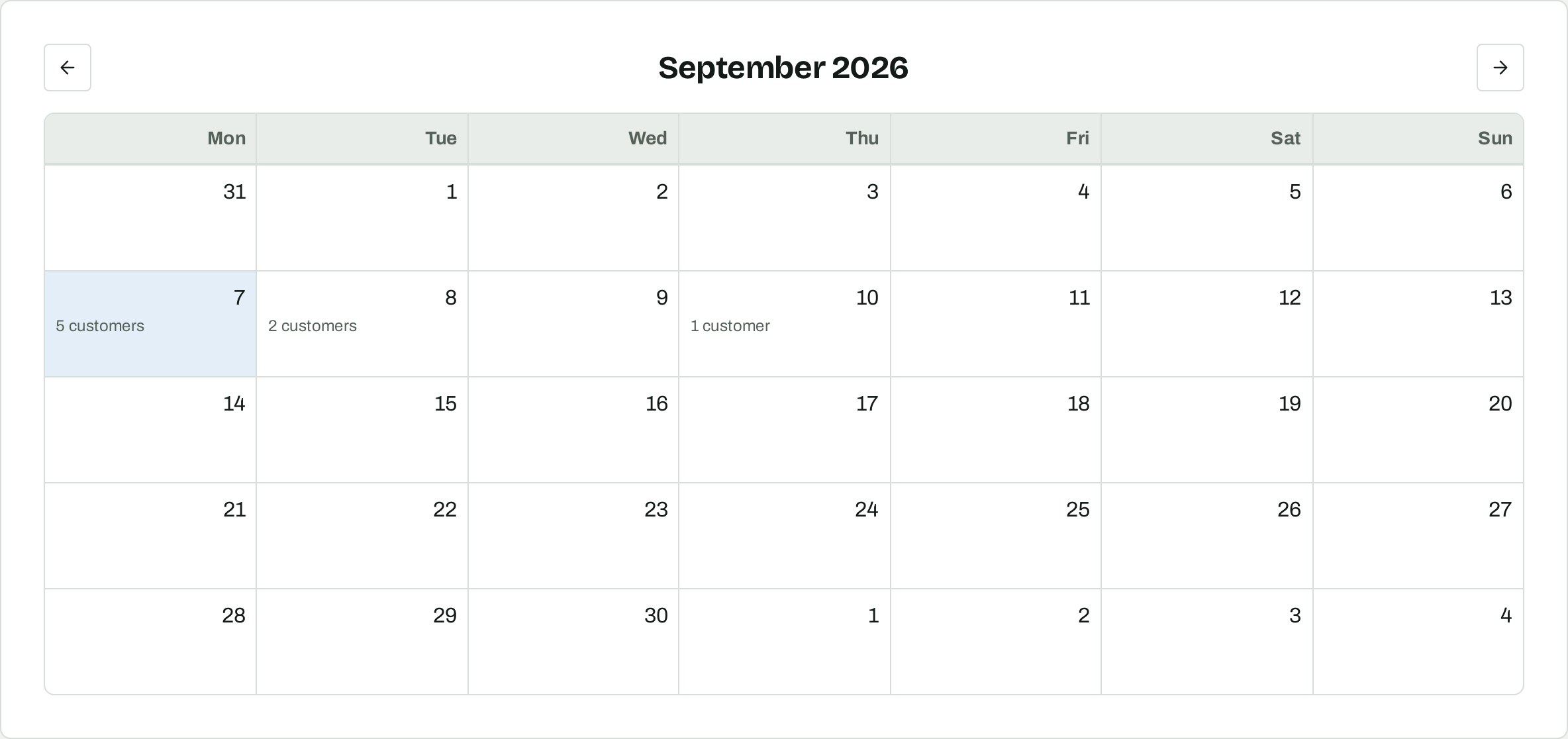
Planner opens on this month, with the number of customers on each day that has work on it. Use it to see the week before you get to it, and to find a day with more work on it than you can do. The arrows move a month at a time. Choosing a day opens it.
2. A day, and the lists on it
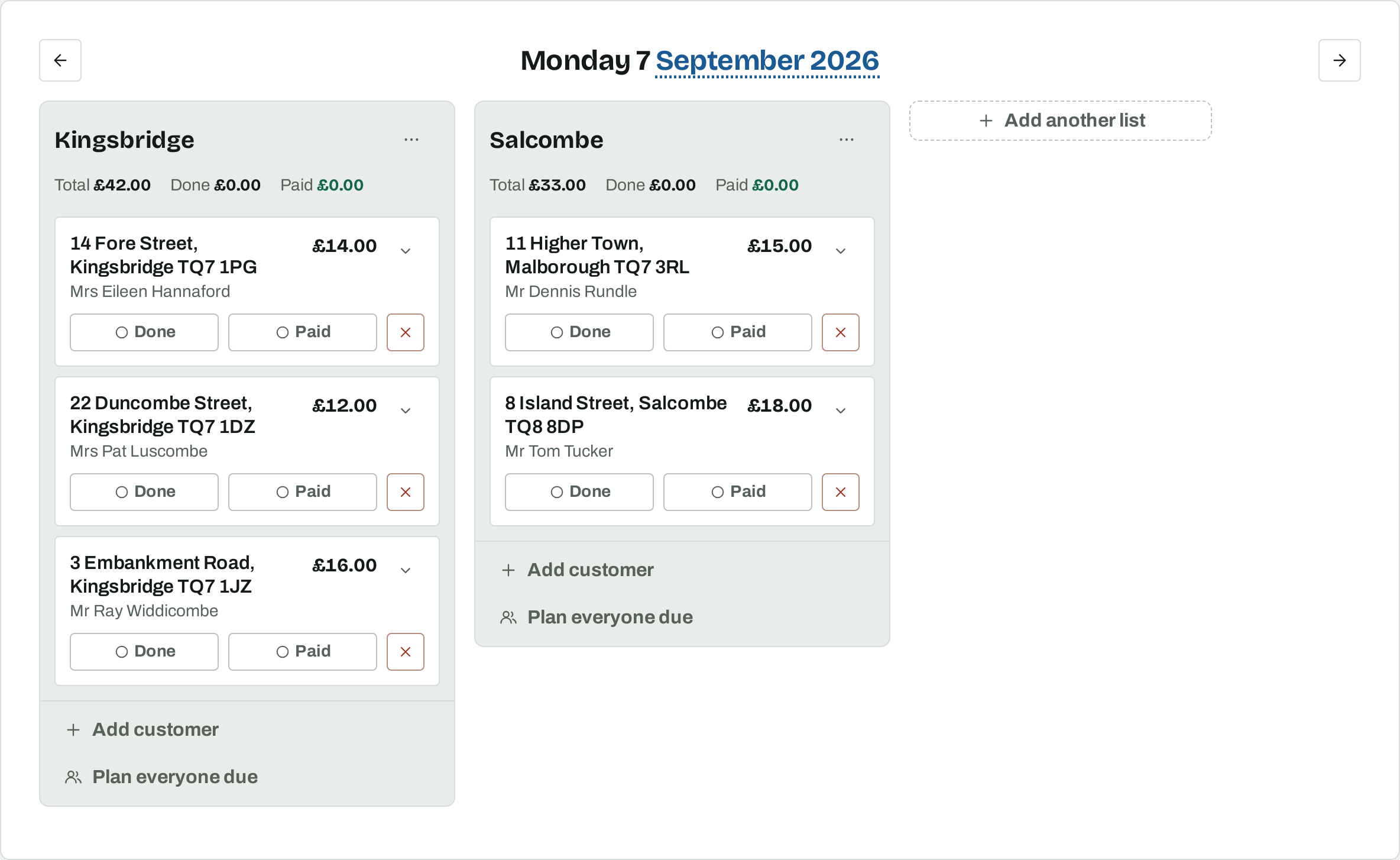
A day holds one or more lists, and everything else happens inside a list. Use one list per round if you cover two places in a day, or one list per person if more than one of you is out. Add another list makes an empty one you can name.
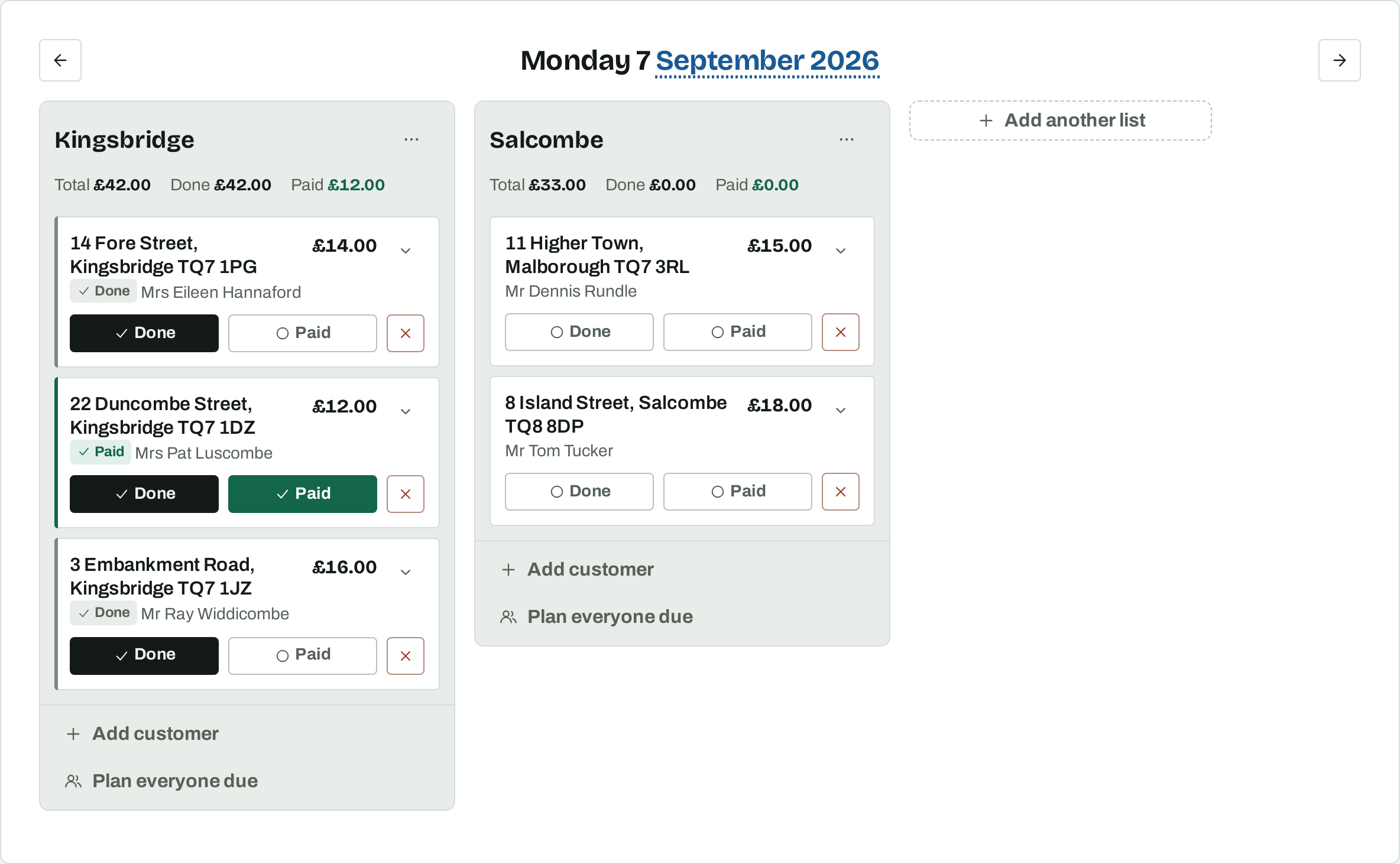
Each list has its own totals across the top: Total is what the whole list is worth, Done is what you have recorded as done, and Paid is what you have taken. The difference between Total and Done is the work left to do, and the difference between Done and Paid is what is still owed from today.
3. Plan a round onto a day
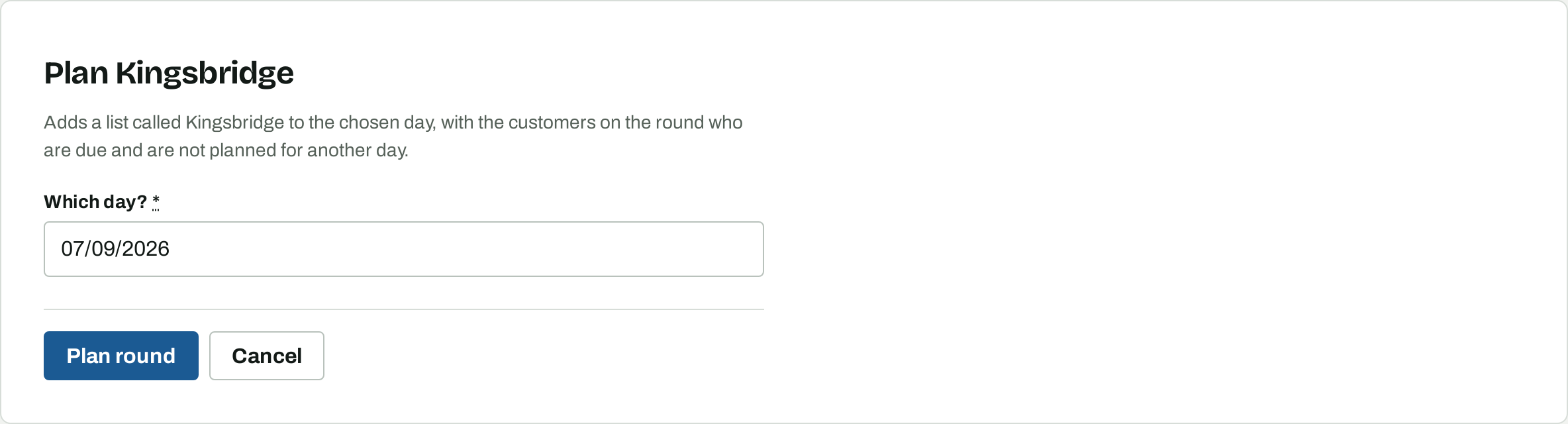
On Rounds, choose Plan round and pick the day. Osmosis adds a list named after the round holding every customer on it who is due by that day. A round covers a town rather than a weekday, so plan it onto whichever day you are going there. Planning the coming week's rounds takes a couple of minutes.
If nobody on the round is due by the day you picked, no list is added and a message says so, so a day you have not planned yet stays empty.
4. Plan everyone who is due
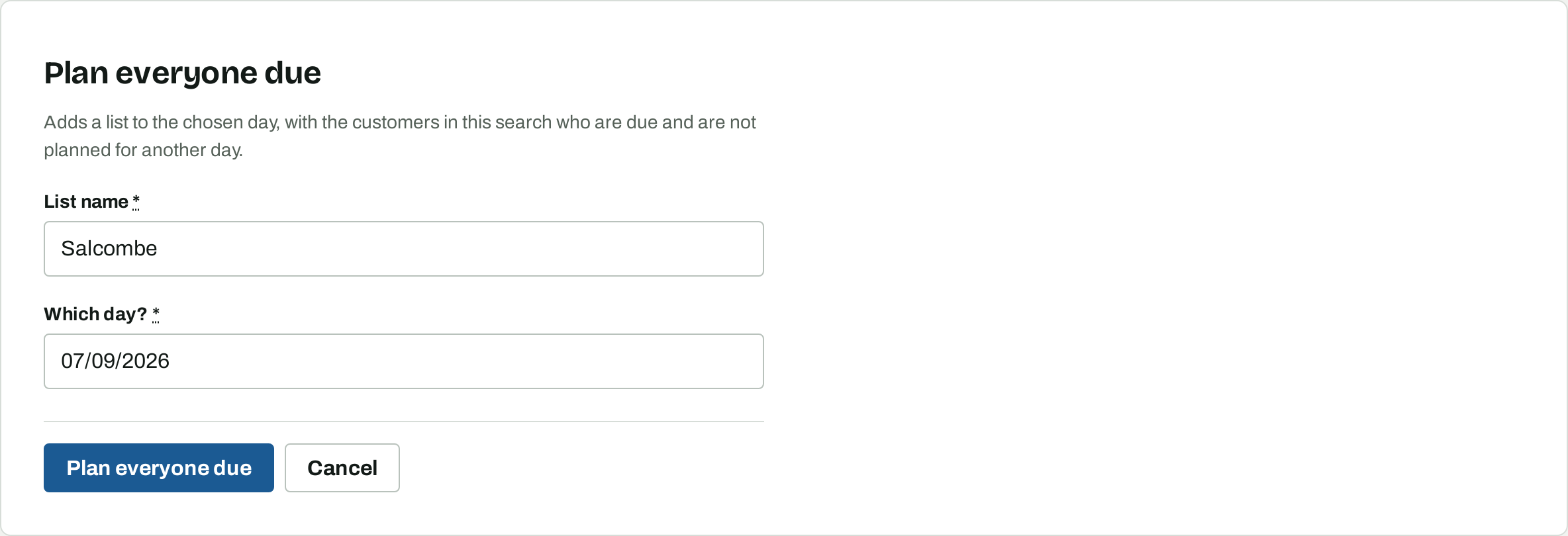
Plan everyone due at the foot of a list adds every customer who is due by that day to that list, whichever round they are on. It is the quickest way to fill a catch-up day.
The same button at the top of the customer list plans the customers your search is showing, so what you search for decides who goes on. Filter by round and search a postcode, and only those customers are planned. The list is named after the round when you have filtered to one, or after what you searched for, and you can change the name before you plan it.
This is also how you split a round that is too big for one day: filter the round by postcode or street, plan that half onto one day, then plan the rest onto the next.
5. Why nobody is planned twice
Both buttons skip anyone who already has a place on a day from today onwards, and anyone who is not yet due. So planning the same round twice adds nobody the second time, and planning a catch-up day will not lift someone off the day they are already down for. You can plan the same round onto several days without checking who is where.
Customers who are not active are never planned, so quotes and people who have stopped stay off your days. See statuses in the customers guide.
6. Add someone while you are out
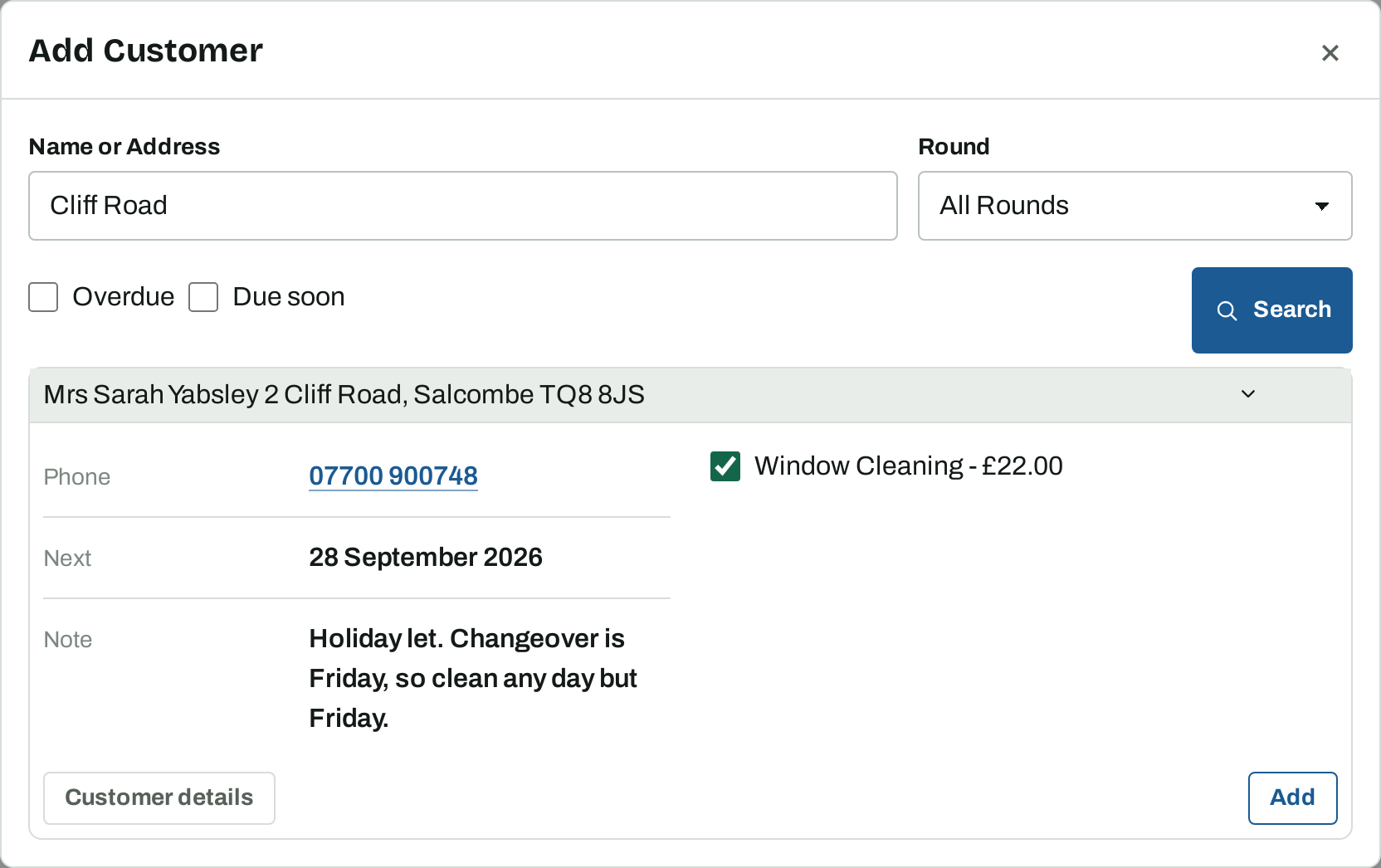
Add customer on a list searches by name, address or postcode, and filters by round, overdue and due soon. Open a result and it shows their phone number, when they are next due and their note, with their services listed as tick boxes. Tick what this visit is for and choose Add.
Use it for a customer who stops you as you pass, and for a customer whose work is all one-off and who therefore never becomes due on their own.
7. Put the list in the order you drive it
A newly planned list arrives in address order, which is rarely the order you drive it. Drag entries up and down to match your route. Drag an entry into another list on the same day to hand that house to somebody else.
The order you leave a list in is kept, both on screen and in print.
8. Working the day
Done records the job: dated to that day, holding the services on the entry at their prices, and it moves the customer's next due date on. From that moment the customer owes you for it.
Paid records the money as cash. Tapping Paid on a house you have not marked done yet records the job as well, so paying at the door takes one tap rather than two.
If you collect by Direct Debit, Done can ask GoCardless for the money for you. See the Direct Debit guide.
9. Change what a visit is for
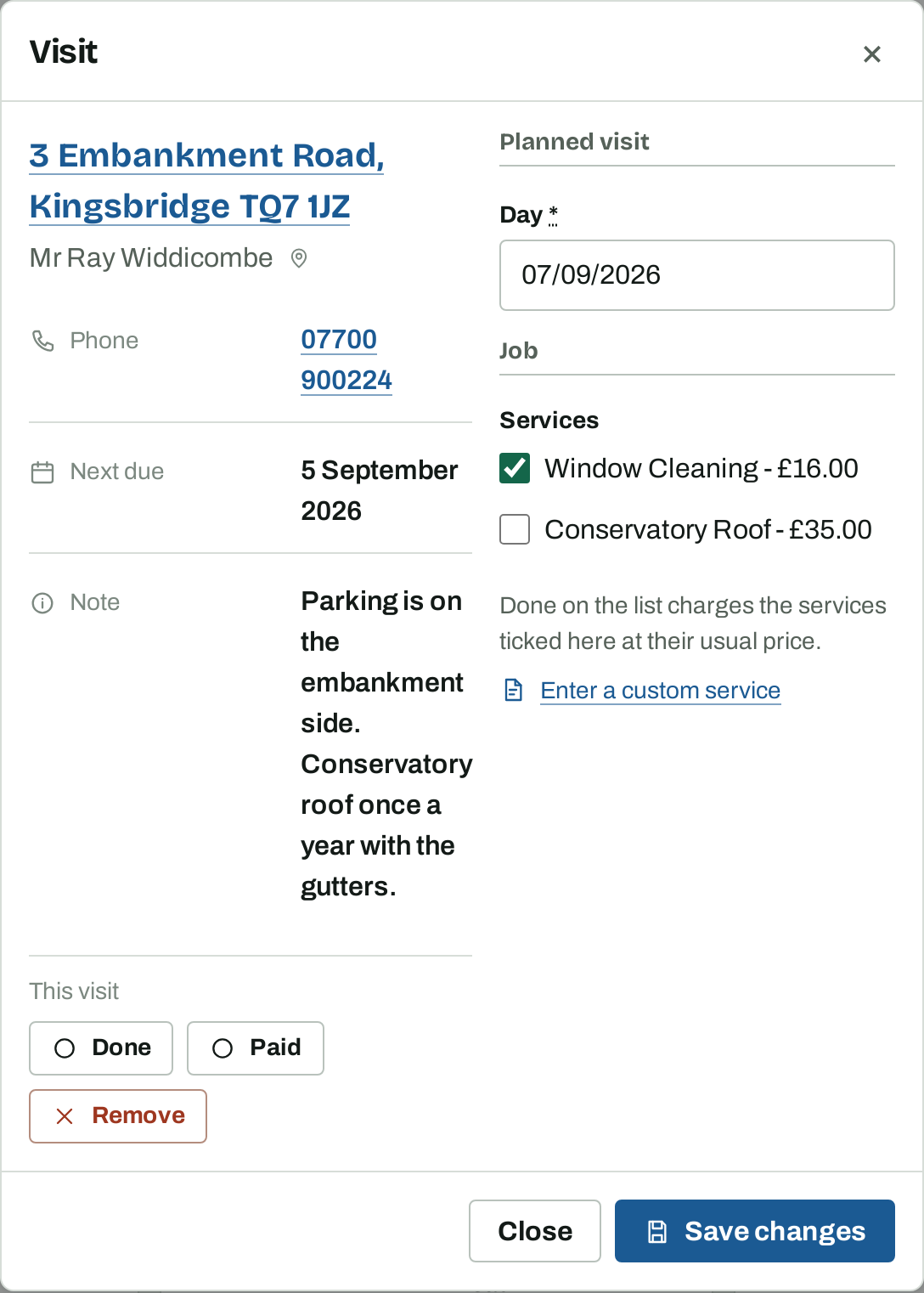
Choosing an entry anywhere but on its buttons opens Visit, which is where you change anything about that call:
- Day moves the visit to another date.
- Services are tick boxes with their prices. Done charges what is ticked, so tick the conservatory roof for the visit where you are doing it and leave it clear the rest of the year.
- Enter a custom service is for a price that is not one of their standing services, such as a one-off after the builders have been.
- Done, Paid and Remove do the same as on the list.
Once a job is recorded, the same panel shows what was charged and offers Change this job instead of the tick boxes.
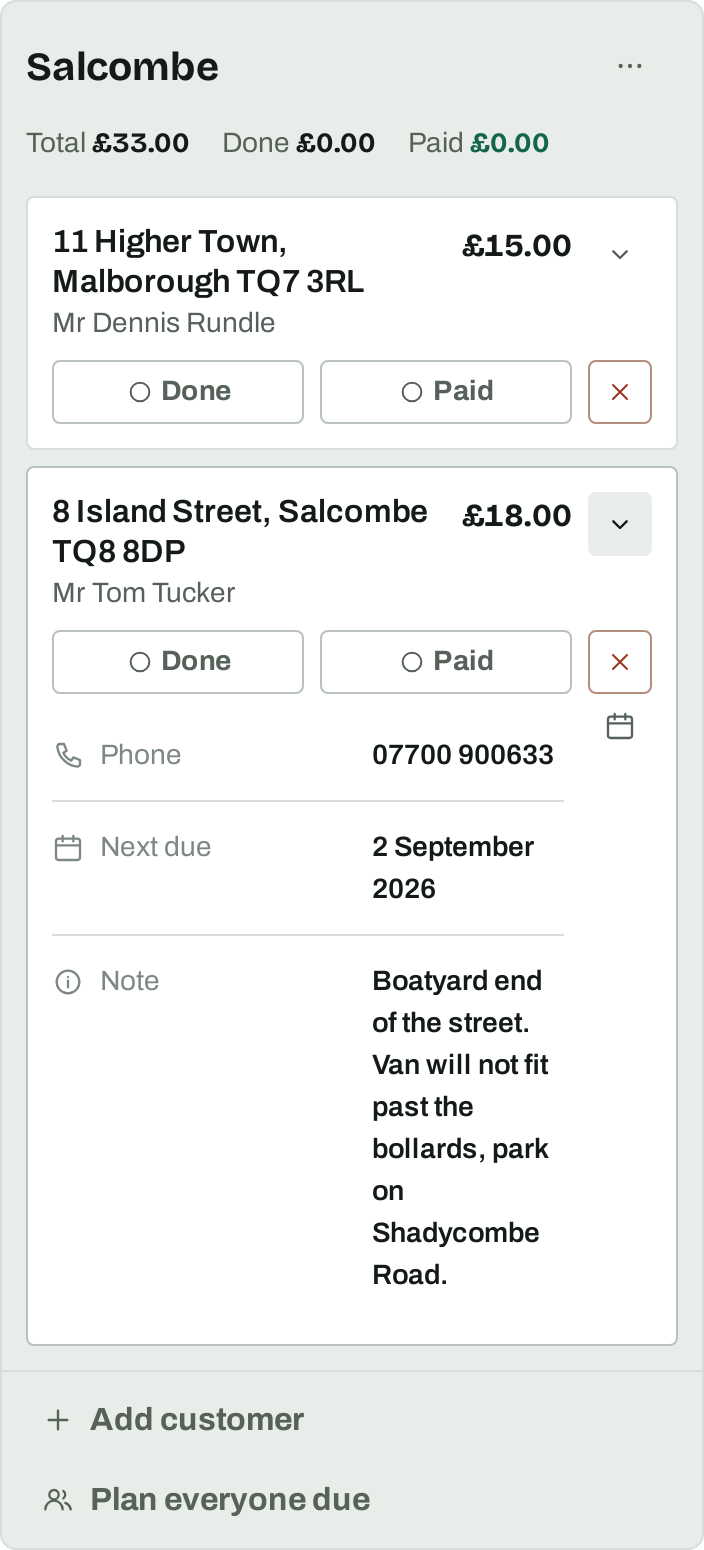
You do not have to open it for what you need at the door. The chevron on an entry shows the phone number, the next due date and the note without leaving the list.
10. A house you could not do
Take it off the list with the × and the customer stays due, so they come up on the next day you plan. Or open Visit and change the day, and they keep their place. Either way nothing is lost and nothing is recorded as done.
Do not mark a house done to get it off the list. Done records a job and the customer will owe you for it.
11. Tapped Done by mistake
Tap Done again and the job is removed and the customer's next due date goes back. If the job was priced or edited by hand after it was recorded, Osmosis asks you to confirm, because that is the part it cannot put back.
Where a Direct Debit has already gone to the bank for the job, Done cannot be undone until that collection settles or fails.
12. Copy a list to another day
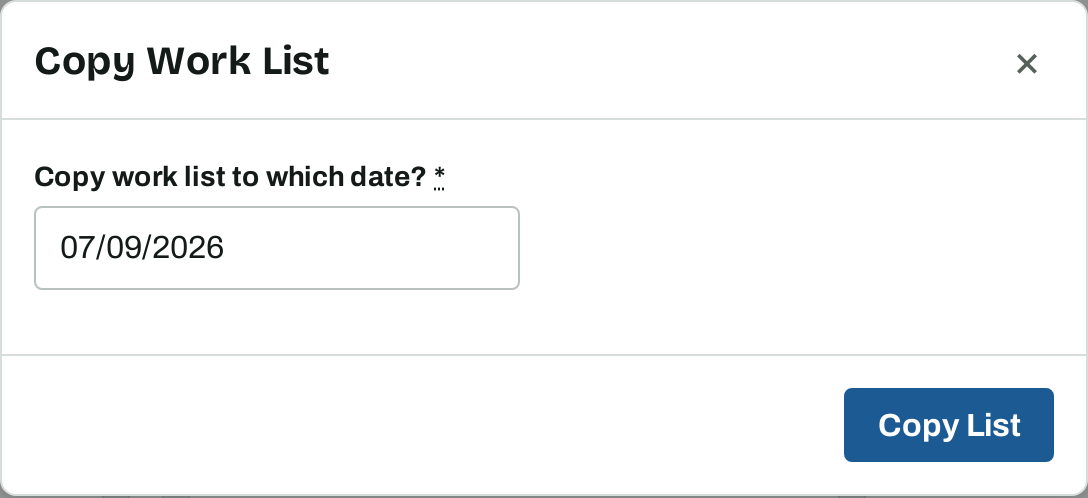
The list menu offers Copy List, which puts the same list, the same customers and the same services onto a date you choose.
Copy takes everyone on the list, whether or not they are due, so it is for a fixed list you work the same way every time. For normal round work, plan the round again instead and only the customers who are actually due go on.
13. Print the day
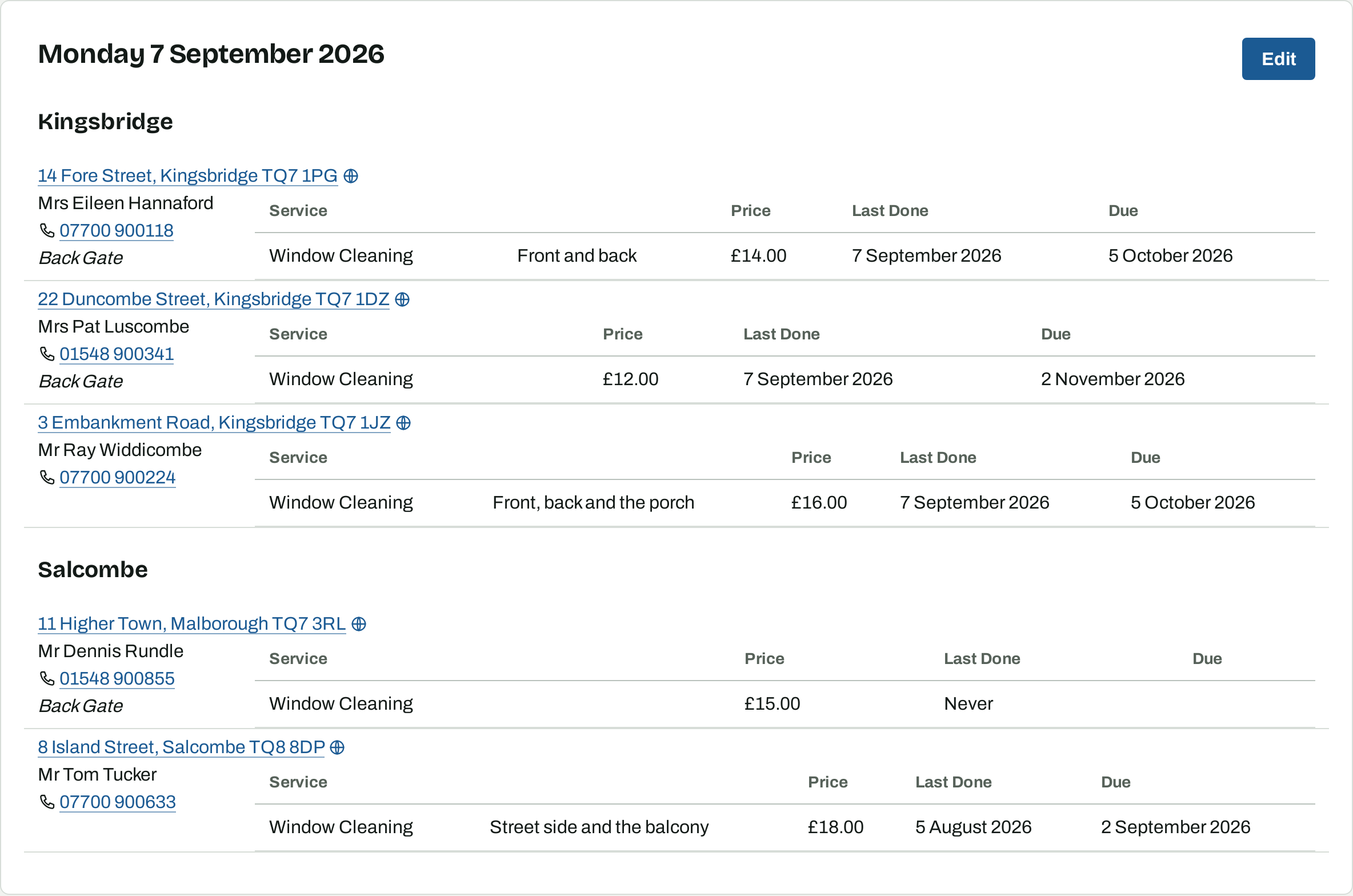
Print List in the list menu opens the day as one page: every list on it, and for each house the address, name, phone number, whether there is a back gate, and each service with its price, when it was last done and when it is due. Print it for a paper copy in the van.
What to read next
- Getting paid and keeping the books — what happens to the jobs you record here.
- Your customers, their services and prices — where the due dates and prices come from.