Getting paid and keeping the books
Record cash, transfers and part payments, see who owes you, and pull the figures out for your accounts.
Osmosis records the work and the money separately. A job is work you have done; a payment is money you have received. What a customer owes is the jobs less the payments, which is why a part payment, a payment covering two cleans and cash at the door are all recorded the same way.
1. What a job is
Tapping Done on the planner records a job: the date, the services with their names and prices, a total and a job number. The job is what the customer owes you for, and it is what the reports add up.
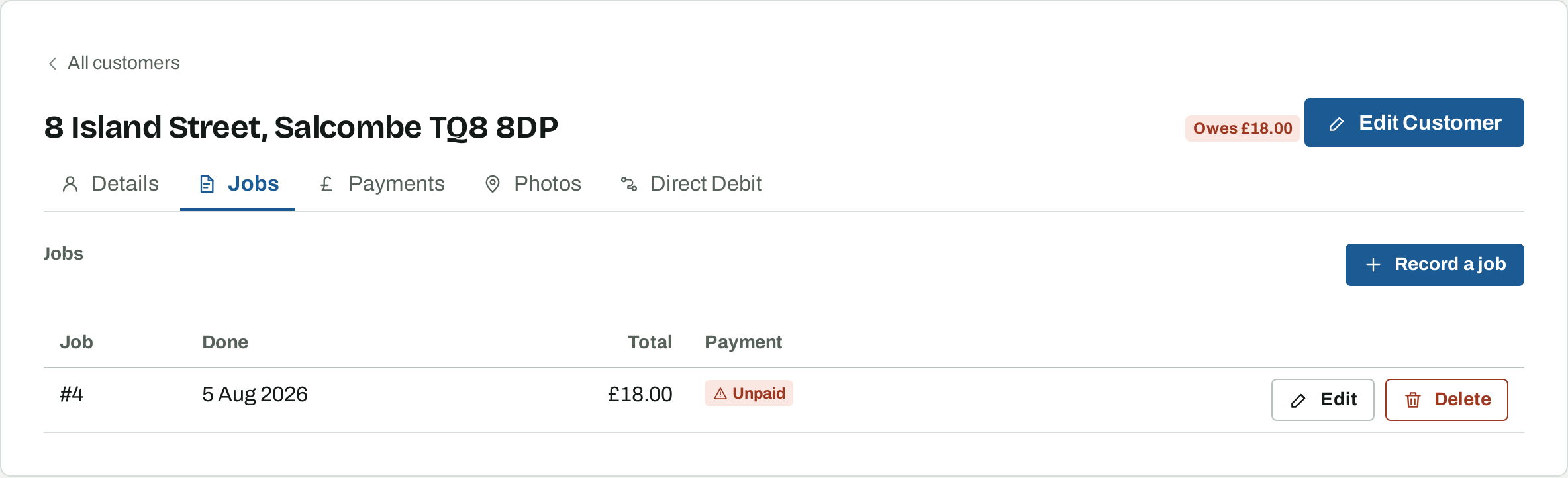
A customer's Jobs tab lists their jobs newest first with what each one came to and whether it has been paid for. A job can be changed or removed from there if you priced it wrong.
2. Record a job that was not planned
Record a job on the Jobs tab is for work that never went on a day: a call-out, a one-off you did on the way past, or work you did before you started using Osmosis. Pick the date, put in the services and prices, and it counts the same as a job recorded from the planner.
3. Cash on the doorstep
Paid on the planner records the job's total as cash, received on the day of the visit. On a house you have not marked done yet, Paid records the job and the cash together, so paying at the door is one tap.
4. A transfer, a cheque, or money for more than one clean
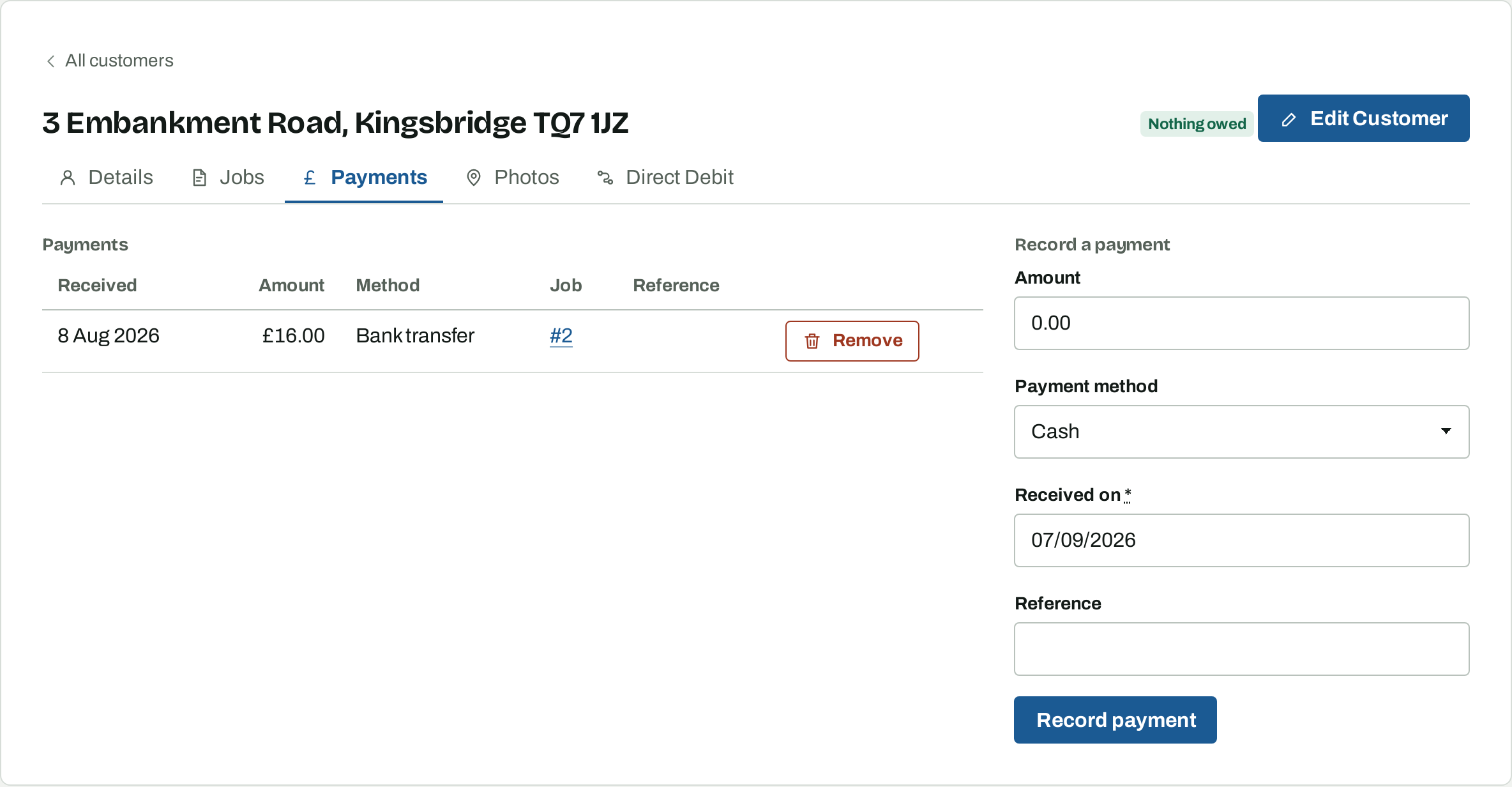
For money that does not arrive at the door, use the customer's Payments tab. Fill in the amount, how it arrived — cash, bank transfer, Direct Debit, card or other — the date it actually arrived, and a reference if you want one. The date starts on today, so change it for money that came in earlier: it is the date the income report goes by.
You do not pick which job the money is for. A payment settles the oldest unpaid job first, then the next, and so on, so one £32 entry clears two £16 cleans without your having to allocate it.
5. Part payments and credit
A payment smaller than the job leaves the rest owing on that job, and the job stays on the outstanding balances report for the difference.
A payment larger than what is owed leaves the remainder as credit on the customer's account, and the credit covers their next job as soon as it is recorded. Use that for a customer who pays six months up front.
6. What a customer owes
A customer's balance is every job recorded done less every payment received. The figure sits at the top of their page: Nothing owed, an amount owed, or an amount in credit. Because it is worked out from the ledger rather than stored, removing a payment or changing a job's price puts the balance right straight away.
7. Who owes you
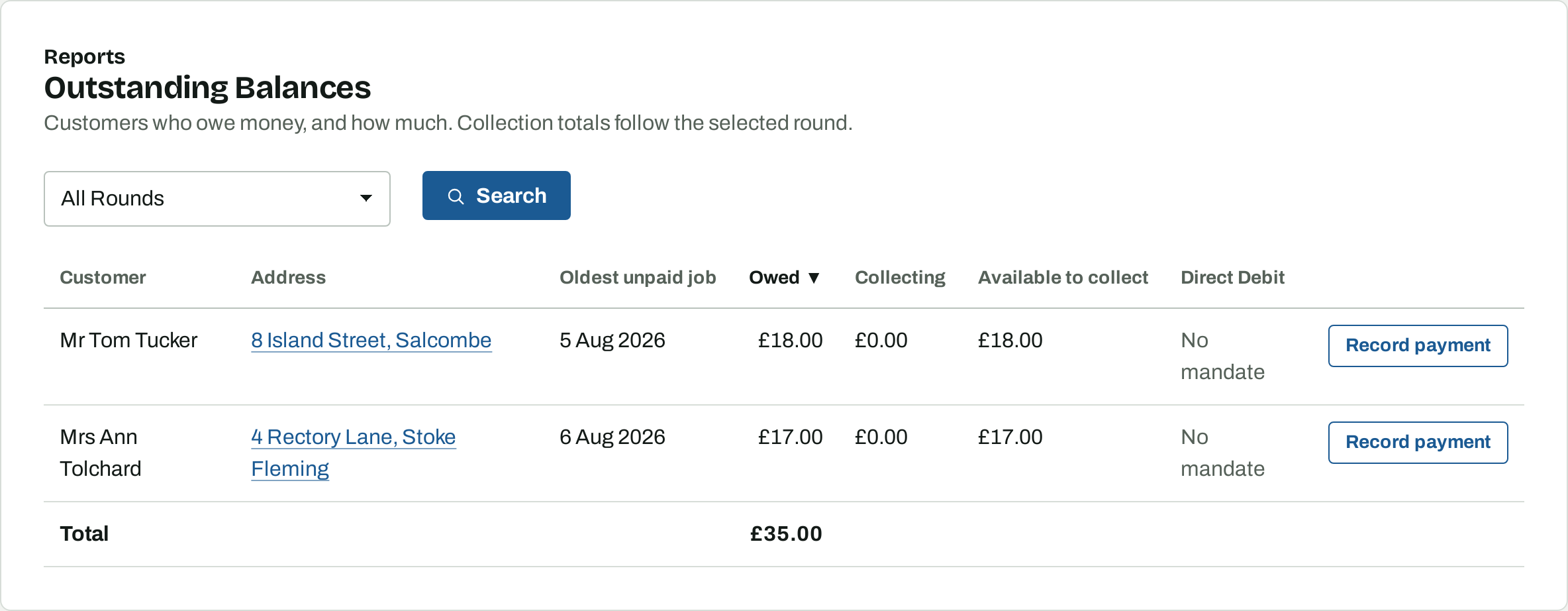
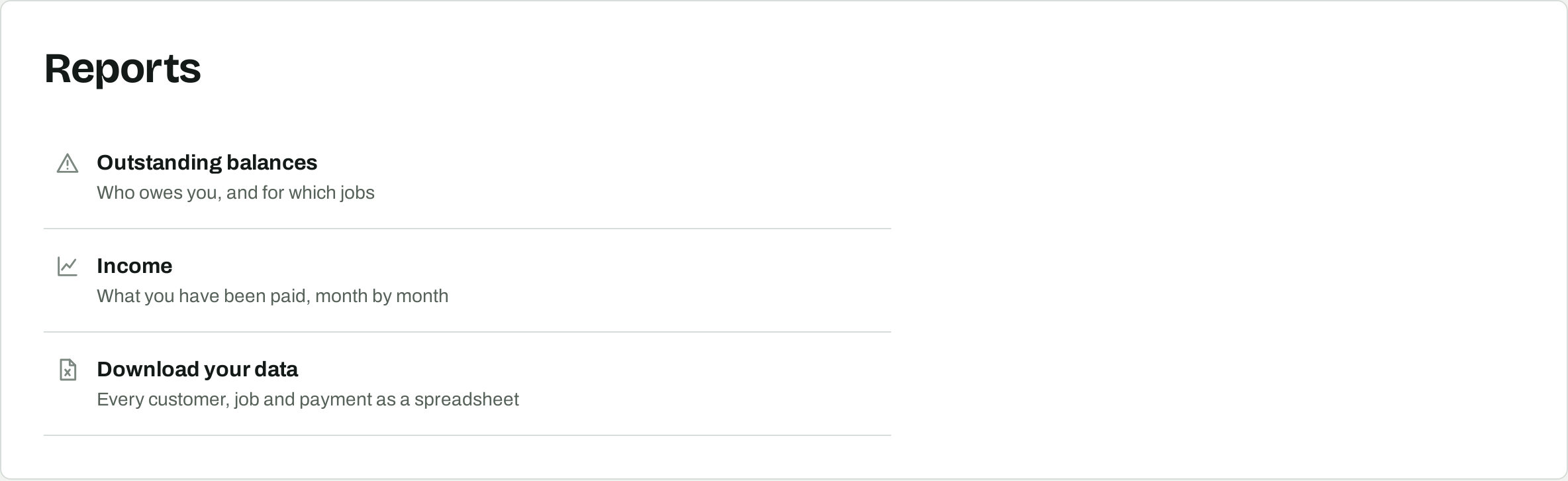
Reports then Outstanding balances lists one row per customer who owes you, with the date of their oldest unpaid job and the amount. Sort by the oldest unpaid job to find the debts that have run on, or by the amount to find the big ones.
Filter by round and chase one round at a time, which is worth doing before you are next in that town. Record payment on a row goes straight to that customer's Payments tab.
8. What you have been paid
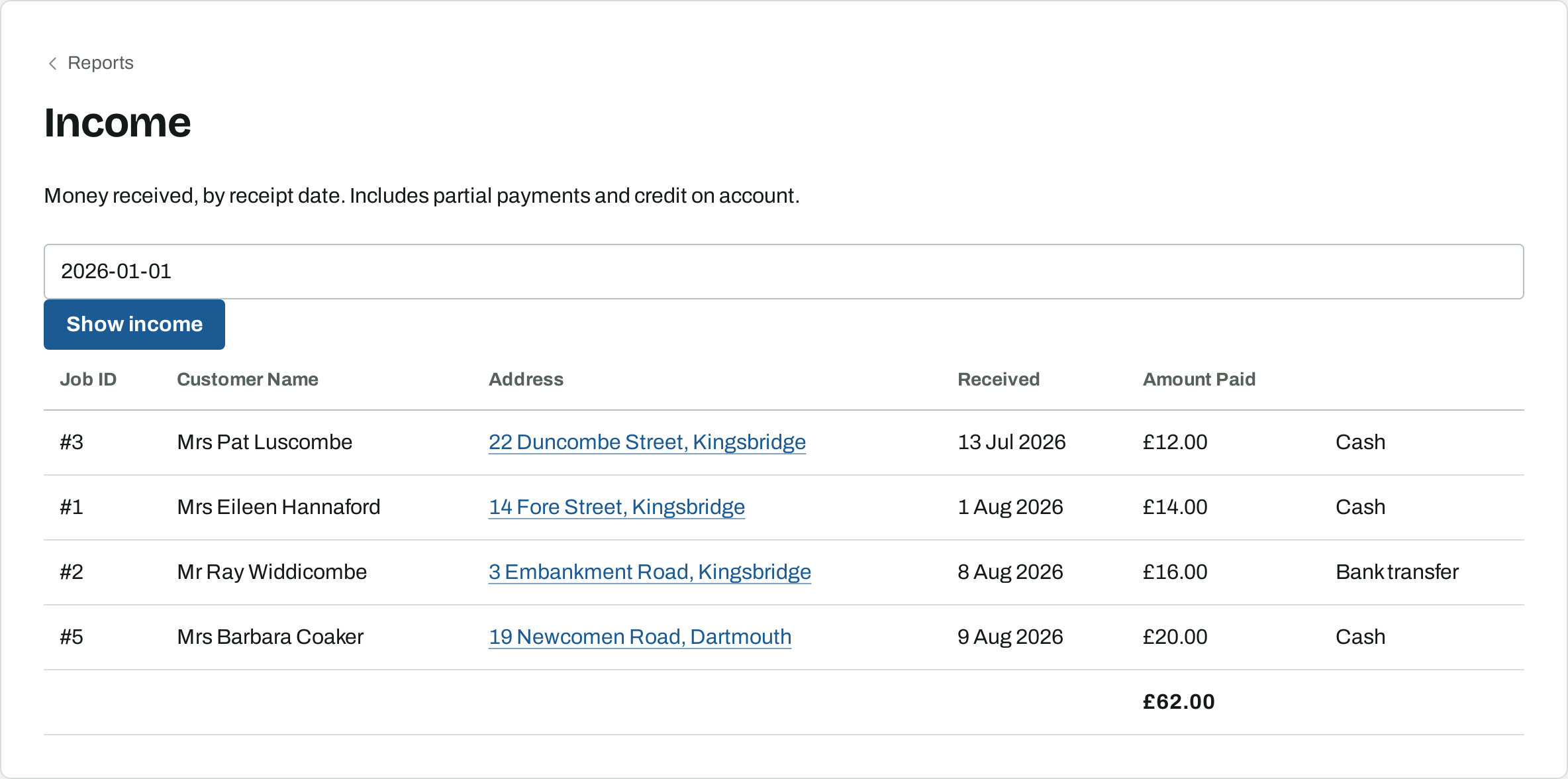
Income lists the money you have received over a date range, by the date it arrived, including part payments and money paid on account. It opens on the last three months.
This is the figure for your books. It is not the same as the total of the jobs done over the same period, because a job done in one month is often paid for in the next.
9. Take your data out
Download your data on the Reports page gives you every customer, job and payment as a spreadsheet. Take a copy whenever you want one. If you ever stop using Osmosis, you can carry on working from it.
10. Collecting by Direct Debit
Osmosis can ask GoCardless for the money as you tap Done, and mark the job paid when it arrives. Collections show up in the ledger like any other payment. See the Direct Debit guide for how to set it up.
What to read next
- Planning your work — where the jobs come from.
- Your customers, their services and prices — where the prices come from.