Messaging your customers
Tell customers the evening before a visit, when the job is done and when a payment is overdue, by email or text, in your own words.
Osmosis sends three kinds of message on its own once you switch them on: a reminder the evening before a visit, a note when you tap Done, and a reminder when a payment is overdue. You can also write to one customer or to everyone on a day's list whenever you like. Every message starts from a template you can change, and everything sent is kept on the customer's page. Nothing goes out until you turn it on.
1. How a message reaches a customer
A customer needs an email address or a UK mobile number. Where they have an email address, the message goes by email, because email is free. Where they have only a mobile number, and texting is switched on for your account, it goes by text. A customer with neither is left out, and Osmosis says so wherever it lists who will get a message.
Emails arrive from Your Company via Osmosis, and a reply goes to your own email address. Texts arrive from your sender name, a short word such as your company name, and a customer cannot reply to a text. That is why every template ends with your contact details.
If an email bounces because the address is wrong, the customer is marked as bounced on their page and Osmosis stops emailing them until you correct the address.
2. The evening before a visit
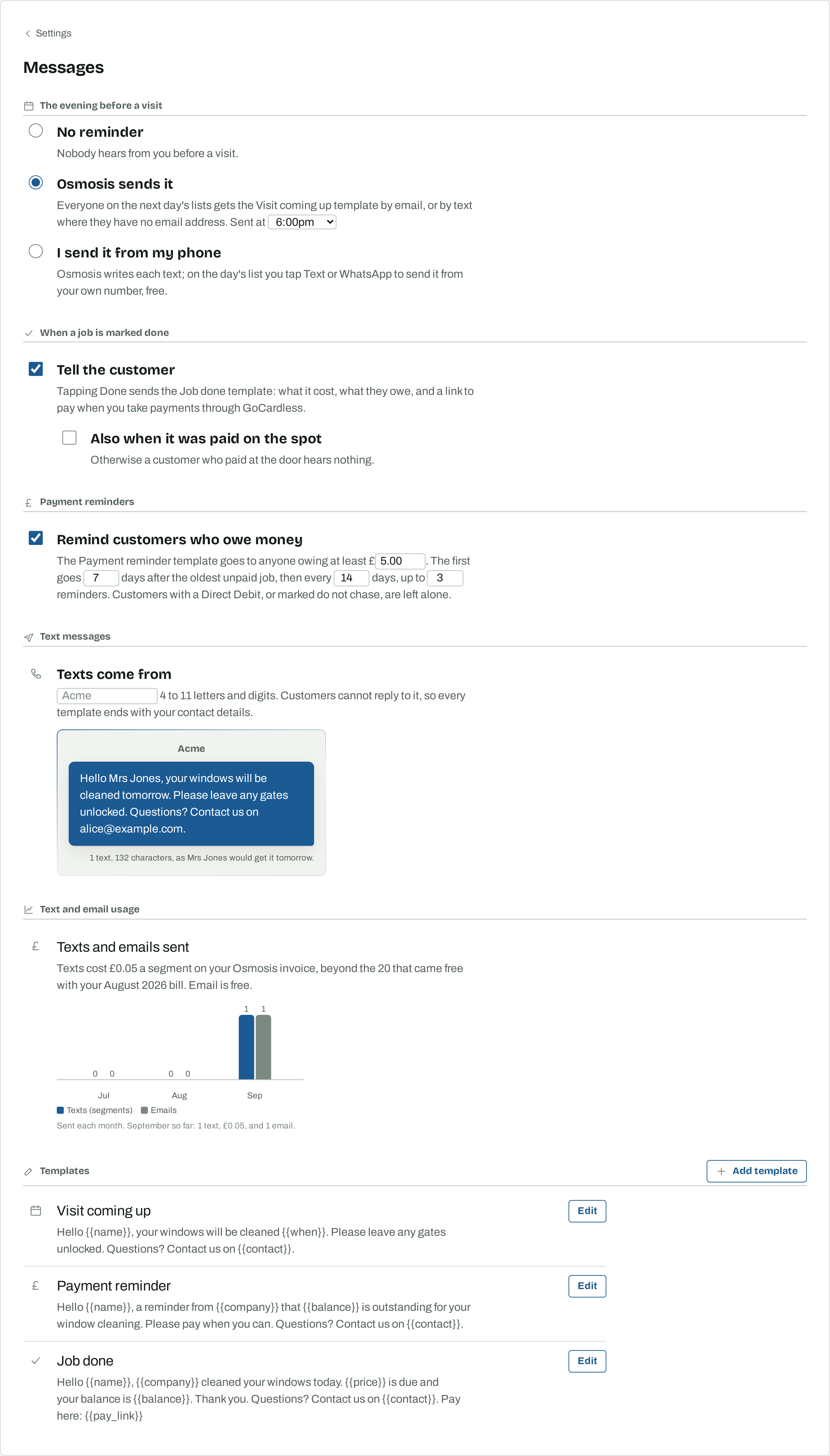
Settings, then Messages, is where messaging is switched on. The first choice is what happens the evening before a visit:
- No reminder. Nobody hears from you before a visit.
- Osmosis sends it. At the time you choose, everyone on the next day's lists gets the Visit coming up template. Anyone you add to the list later than that is not messaged, and anyone you have already messaged about that visit is not messaged twice.
- I send it from my phone. Osmosis writes each text and puts a Text and a WhatsApp button beside each customer on the day's list. Tapping one opens the message in your phone's own app, addressed and written, ready to send from your own number at no cost. Osmosis records that you sent it.
3. When a job is marked done
With Tell the customer ticked, tapping Done on the planner sends the Job done template: what the clean cost, what they now owe, and, if you collect through GoCardless, a link to pay. A customer who paid at the door hears nothing unless you also tick Also when it was paid on the spot.
The pay link takes the customer to a GoCardless page where they can pay what is owed from their banking app, and the payment appears in Osmosis when it arrives. See the Direct Debit guide.
4. Payment reminders
With Remind customers who owe money ticked, Osmosis sends the Payment reminder template each morning to anyone whose oldest unpaid job is older than the number of days you set, and who owes at least the minimum you set. It then reminds them again at the interval you set, up to the limit, and stops. A customer who pays is not reminded again.
Customers with a Direct Debit are never reminded, because the money is on its way. Nor is anyone you have marked Do not chase payments on their customer record.
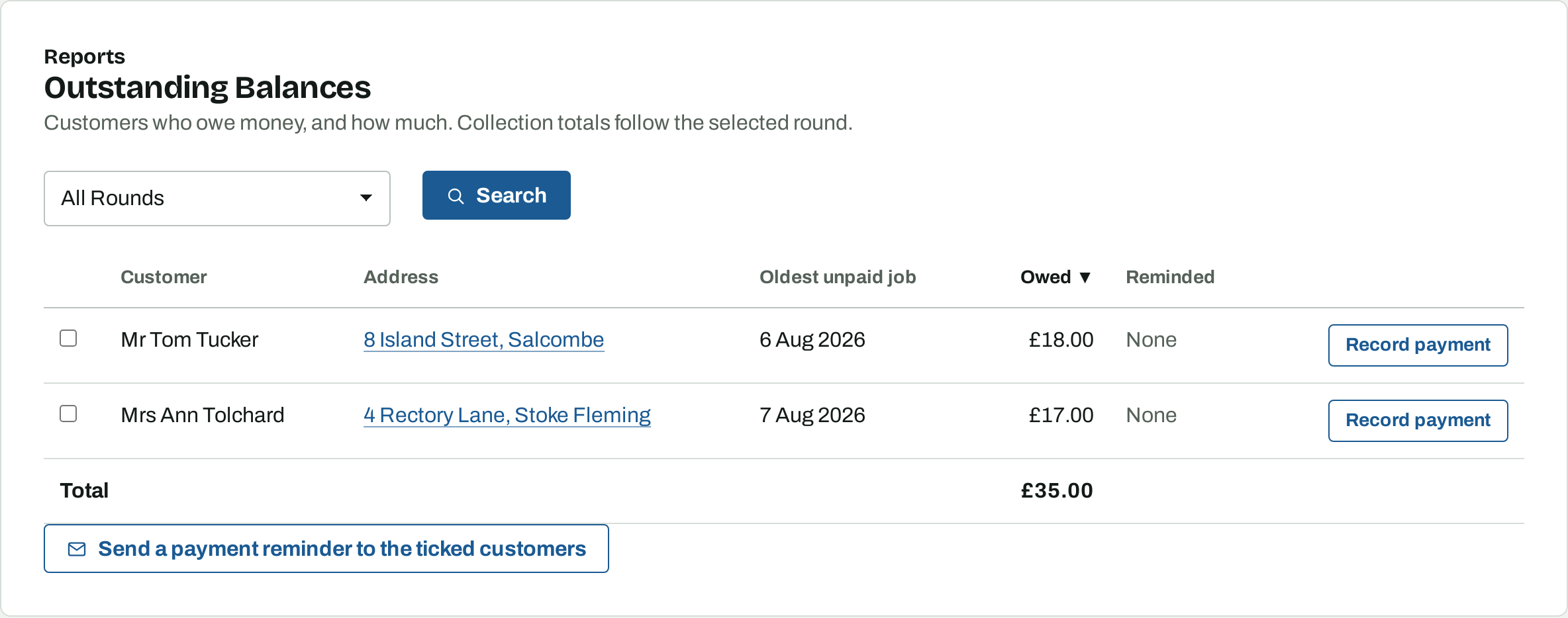
You can also send a reminder by hand. On Reports, then Outstanding balances, tick the customers and choose Send a payment reminder to the ticked customers. The Reminded column shows how many reminders each customer has had about their current debt, and when the last one went.
5. Templates and what fills them in
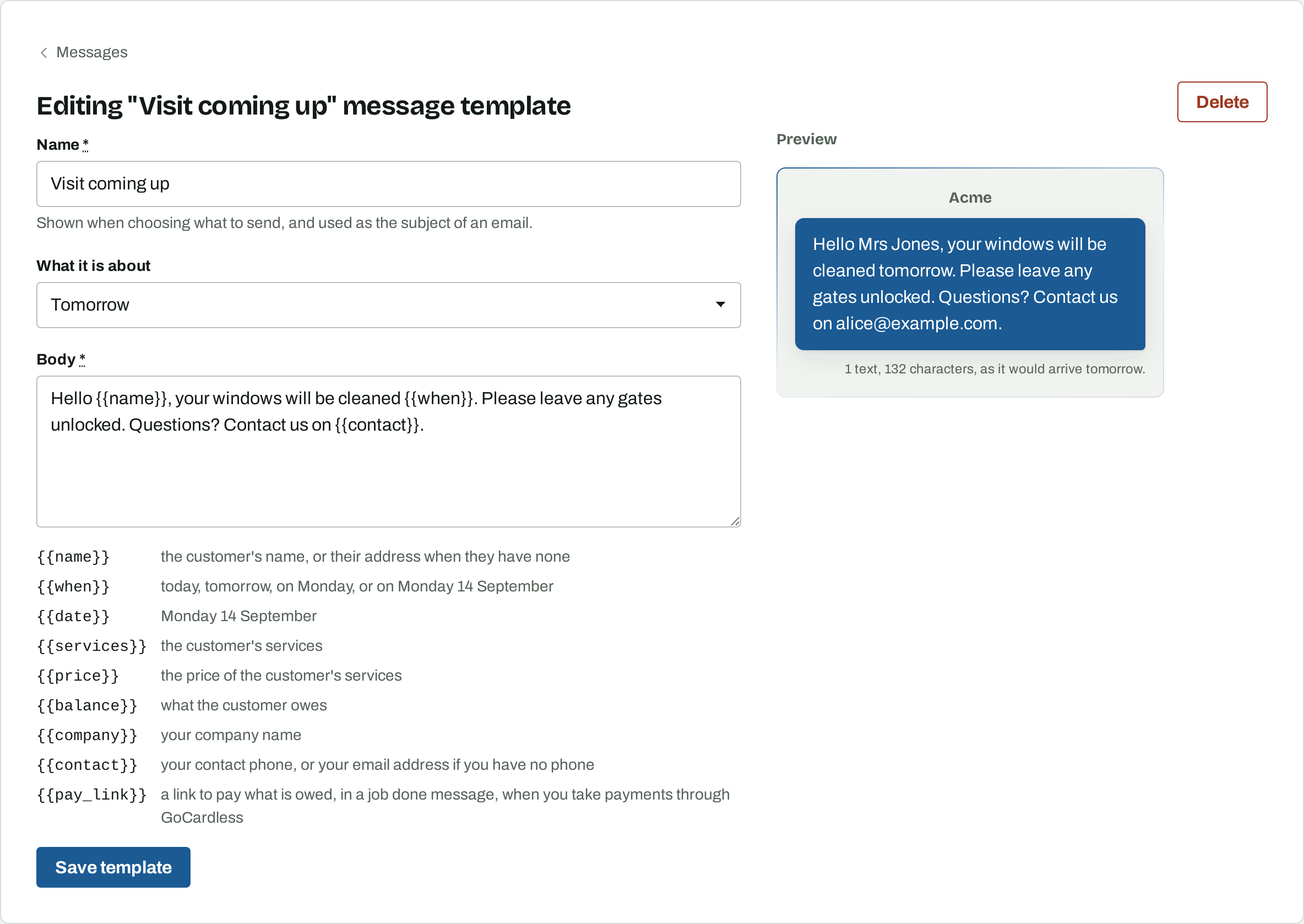
Each kind of message has a template: Visit coming up, Job done and Payment reminder. Osmosis gives you a starting version of each. Change the words on the Messages settings page, and add templates of your own for anything else you send often, such as a price rise or a quote.
The parts that change from customer to customer are written in double braces and filled in when the message is sent:
{{name}}- The customer's name, or their address if you have not recorded a name.
{{when}}- "today", "tomorrow", "on Thursday", or "on Thursday 17 September" for a day further off.
{{date}}- The date of the visit in full, such as "Thursday 17 September".
{{services}}- The customer's services, such as "Windows and Gutters".
{{price}}- The price of those services. In a Job done message, what the job came to.
{{balance}}- What the customer owes.
{{company}}- Your company name.
{{contact}}- Your contact phone number, or your email address if you have not given a phone number.
{{pay_link}}- A link to pay what is owed, in a Job done message, when you take payments through GoCardless.
A sentence whose value is blank is left out of the message. "Pay here: {{pay_link}}" disappears when there is no link, so the same template works whether or not you use GoCardless.
The editor shows the message as a customer would receive it, filled in for one of your customers, with the number of texts it would take. Keep an eye on that count: a text over 160 characters costs two.
6. Message one customer
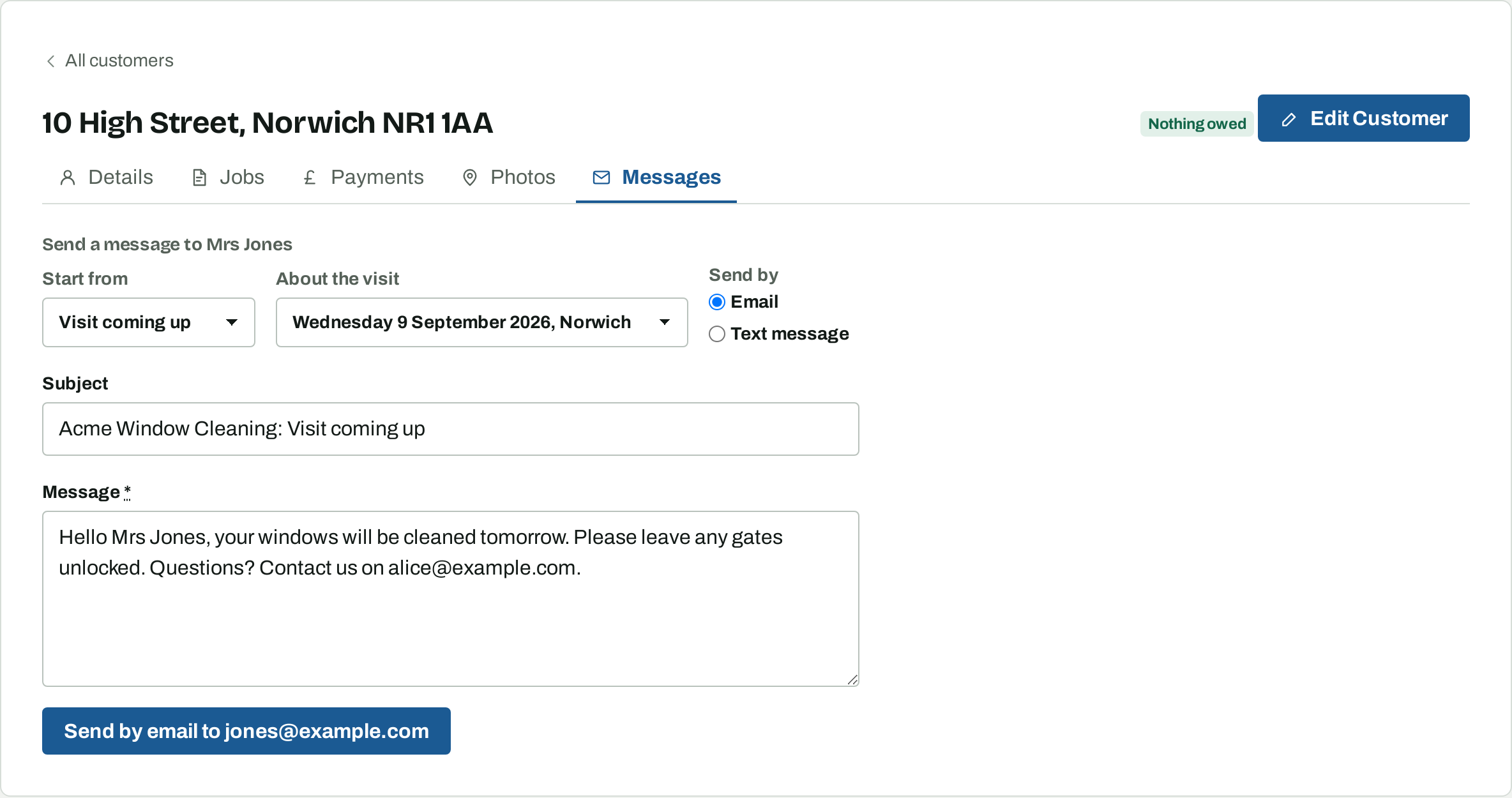
A customer's Messages tab has Send a message. Pick the template to start from, and the visit it is about, so that "tomorrow" or "on Thursday" comes out right. Choose email or text where the customer can take both. Then change the words if you want to, and send.
The same form opens from a customer's row on the planner, already set to that visit, for a message about one house on the day: you are running late, or the gate was locked.
7. Message everyone on a list
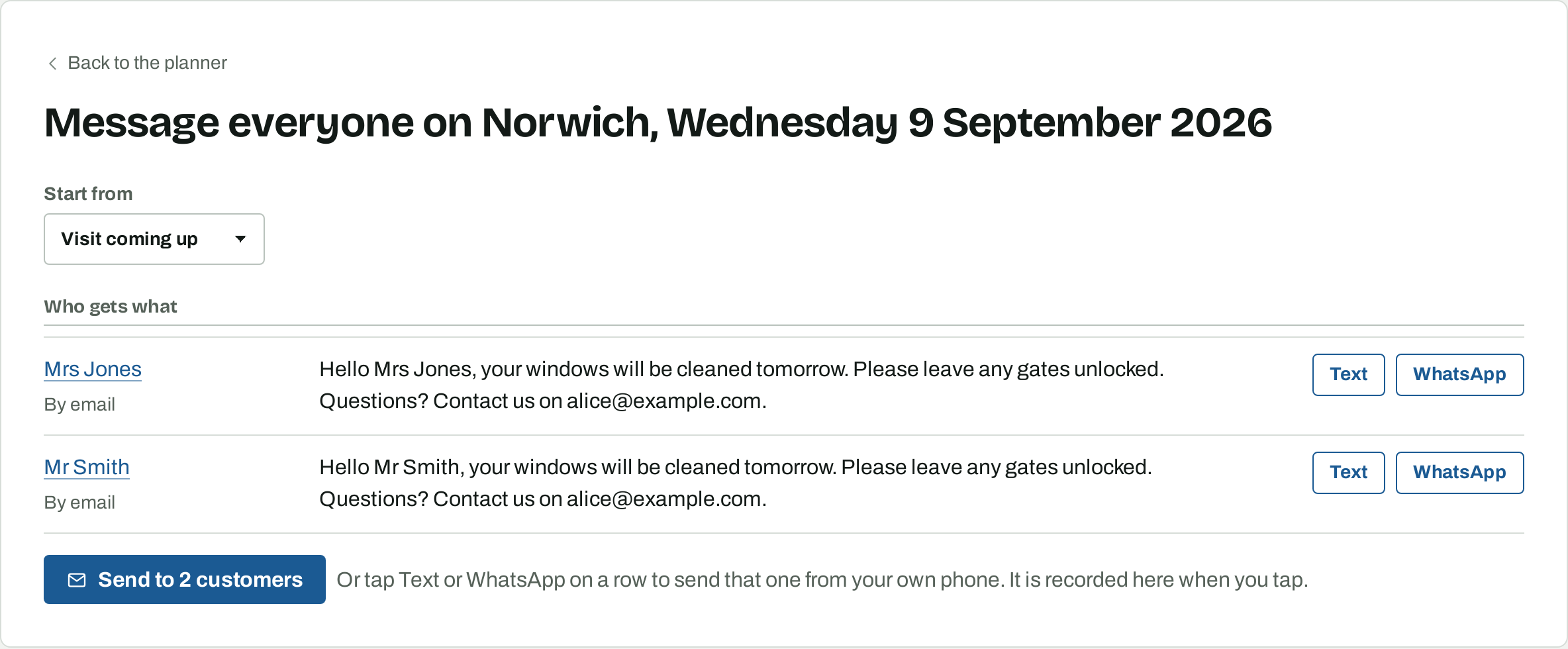
On the planner, each list's menu has Message everyone. Pick the template and Osmosis shows who will get what: each customer, how they will be reached, and the message with their name and day filled in. Anyone already messaged about this visit, anyone who cannot be reached and anyone who has asked for no messages is shown but left out. Send sends the rest at once.
The Text and WhatsApp buttons beside each customer send that one message from your own phone instead, at no cost. Use them when you want to send a few by hand, or when texting through Osmosis is not switched on.
To keep one visit quiet, for instance a customer who has asked you not to remind them about this one clean, use the bell button on their row on the planner. It stops every message about that visit, including the evening-before reminder, and leaves the rest of their messages alone.
8. What has been sent
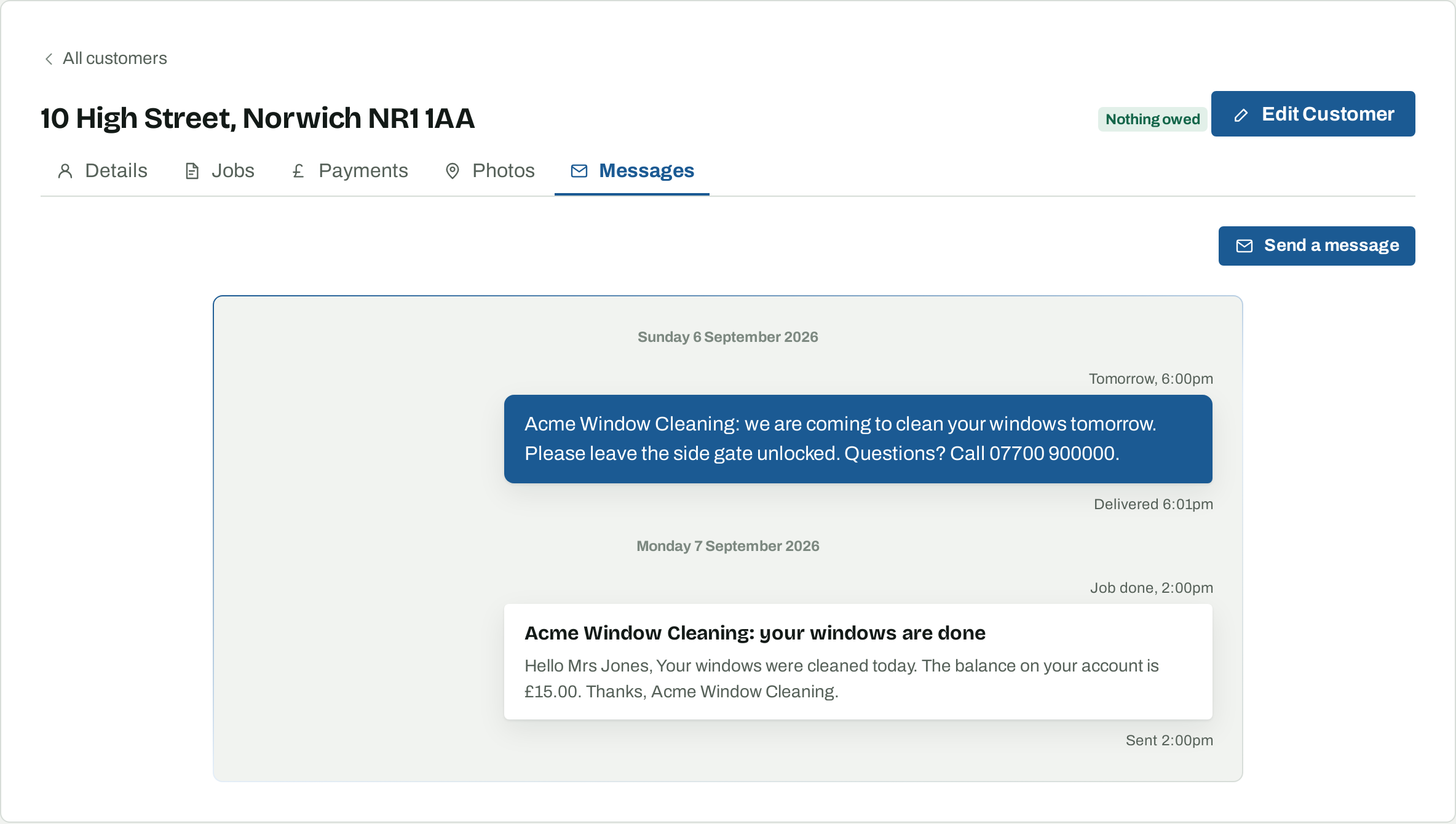
A customer's Messages tab lists everything you have sent them, oldest first, with the time it went and whether it arrived. A text shows Delivered once the network confirms it reached the phone. A message that could not be sent shows why, so you can correct the number or address and try again. Hold the pointer over a time to see the full date.
9. Texts: the sender name and the cost
Texting is switched on for your account when you ask for it; email works for everyone from the start. Ask us if you want to text.
Texts arrive from a sender name of 4 to 11 letters and digits. Osmosis starts with the first word of your company name, and you can change it on the Messages settings page. Customers cannot reply to a text.
Texts are metered on your Osmosis bill: 5p a text, beyond 20 that are included with each £6 of your monthly charge. A text is up to 160 characters, so a longer message costs two or three. The editor and the compose form both show the count before you send. Email is free, and the usage chart on the Messages settings page shows how many of each went out in the last three months. Texts you send from your own phone are not counted, because they do not go through Osmosis.
10. Customers who do not want messages
On a customer's record, Do not send them messages stops every message to that customer: visit reminders, job done messages, payment reminders and anything sent by hand. Do not chase payments stops payment reminders alone. Both are on the customer's edit form, and a customer who has bounced or opted out is shown as such on their page and wherever a list of recipients is drawn up.
What to read next
- Planning your work — the lists that the evening-before reminders are drawn from.
- Getting paid and keeping the books — the balances that payment reminders are about.
- Collecting by Direct Debit with GoCardless — where the pay link in a job done message goes.